Hi Swaysome,
I am Mario and I am a independent advisor, and I would like to help you.
Here's how you can do it:
1- Open the Settings app in Windows 11.
2- Click on "Time & Language".
3- Click on "Language".
4- Under "Preferred languages", click on "Add a language".
5- Search for "Chinese (Simplified)" and select it.
6- Click on "Options" and select "Add a keyboard".
7- Select "Microsoft Pinyin" as the keyboard.
Now you can switch to the Microsoft Pinyin keyboard and start typing pinyin with tone marks. To add tone marks to a character, simply type the tone number after the vowel. For example, to type "nîhâo", type "ni3hao3" and the keyboard will automatically convert it to "nîhâo".
Hope this can help you solving the issue.
Is there anything else I can help you with?
Best regards,
Mário
Thank you Mario for getting back to me so quickly. I followed the steps you provided but unfortunately, it didn't resolve my issue. When I went to type using that format the only thing that happen was it suggest and select the Chinese character associated with that tone and not the pinyin with tones.
Example:
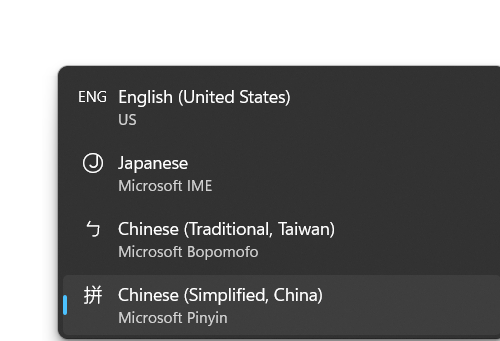
1-Install the Japanese language pack
2- Switch to Japanese keyboard
3- Install Pinyin input method
4- Switch to Pinyin input method
After completing these steps, you can use Japanese language pack and Pinyin input method on your Windows 11 device using "Ctrl+Shift" keyboard shortcut to switch between input methods and use "Ctrl+Shift" keyboard shortcut Windows + Space" to switch between input languages.
Hope this can help you solving the issue.
Best regards,
Mário


