Thank you for reaching out to us!
Your ticket has been successfully submitted.
You'll receive an email with your ticket details, and our support will contact you within 48-72 hours.
View my ticket
Continue to Home
When recording videos with Overwolf, you might run into some problems. We've listed the most common ones below, along with explanations and easy fixes so you can solve them yourself :)
Take me to...
If you are encountering issues with the recording sound such as no audio / low audio / microphone not recording please try out the troubleshooting steps in this article:
Common Sound Capture Issues
Game Highlights and Apps are Currently Down
you might see a message in the app saying that highlights and apps are currently down. When this happens, your highlights won’t be captured automatically, but you can still record videos manually using the steps
Here
..
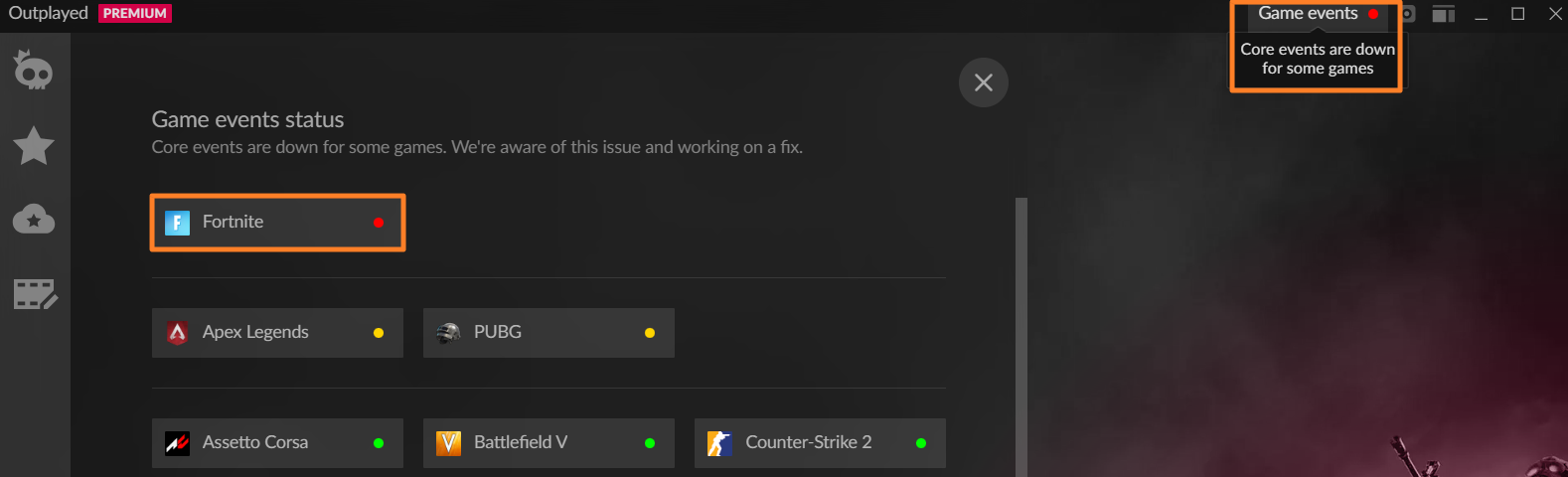
There’s nothing you need to do we’re already working on it!
This issue will fix itself once everything is patched up. We just ask for a little patience while we get things back to normal.
For more information, please visit the following article:
Apps and Highlights Status Explanation
.
Recording Issues: High CPU usage / Stuttering / Lag / 1-Second Videos
GPU Drivers
If your recorded videos are
laggy
,
freeze on one frame
,
record for one second
, have
audio out of sync
, or don’t capture at all your
graphics card drivers
might be outdated.
Old drivers can stop your GPU’s
video encoder
from working properly which is what makes video recording possible. If it’s not working correctly or out of date, you’ll likely run into issues.
To fix this, update your GPU drivers by visiting your graphics card manufacturer’s website:
After updating,
restart your computer
to make sure the changes take effect. Then try recording again.
Codecs
The best recording results usually come from using a
codec that uses your dedicated GPU
(graphics card) for encoding. Other codecs, like x264, rely on your
CPU
instead.
Using a CPU-based codec can cause problems as your CPU has to handle the recording
plus
everything else your system is doing, which can lead to broken or low-quality videos.
You can change the codec in your
recording app settings
(If you're unsure where this setting is please
contact the app developers
) or in
Overwolf's Capture settings:

If your graphics card's
encoder option is grayed out
, even though your drivers are up to date, you can try doing a
clean driver installation
for a better fix.
To learn more about encoders and how they work, check out the articles in this category:
Codecs
.
Presets
Some presets can use too much of your computer’s resources, which may lead to broken, laggy or poor-quality recordings.
To avoid this, make sure your preset in your Overwolf recording app is set to
"Default"
or
"Automatic"
, then try recording again.
The option to change the preset may show in the advance capture settings of the app you are using. If you're unsure where this setting is please
contact the app developers
.
High Quality Settings
If your capture settings (such as resolution or FPS) are set too high for your system, your videos might not record properly.
For best results, follow the
custom settings
listed in the
Minimum Recording Requirements & Recommended Settings
article.
Try lowering the
resolution and FPS
restart the computer, then try recording a new clip to see if it works better.
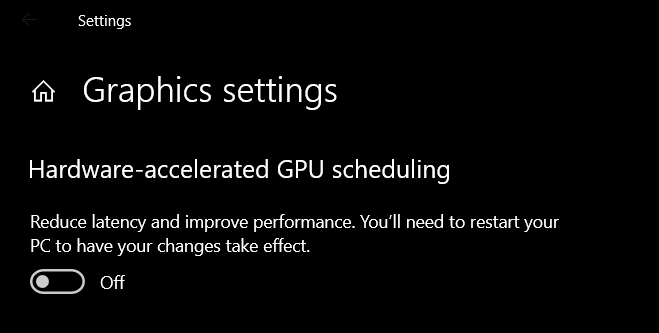
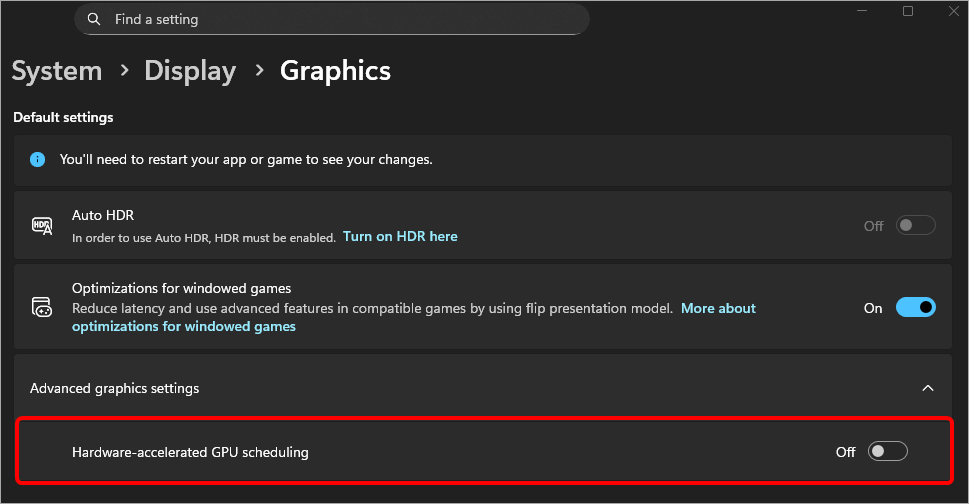
Hardware-accelerated GPU scheduling
Windows 10 version 2004 (build 19041) introduced a new setting called
Hardware-accelerated GPU scheduling
. When this is
turned on
, it can
interfere with Overwolf’s recording system
(which is based on OBS) and cause problems with video capture or the recorded files.
To fix these issues, try
turning this setting off:
-
Windows 10:
-
Windows 11:
If you prefer to keep the Hardware-accelerated GPU scheduling enabled
, you can try to switch the game's display mode from 'Fullscreen' to 'Windowed'/'Windowed Borderless' in order to eliminate lags/dropped frames.
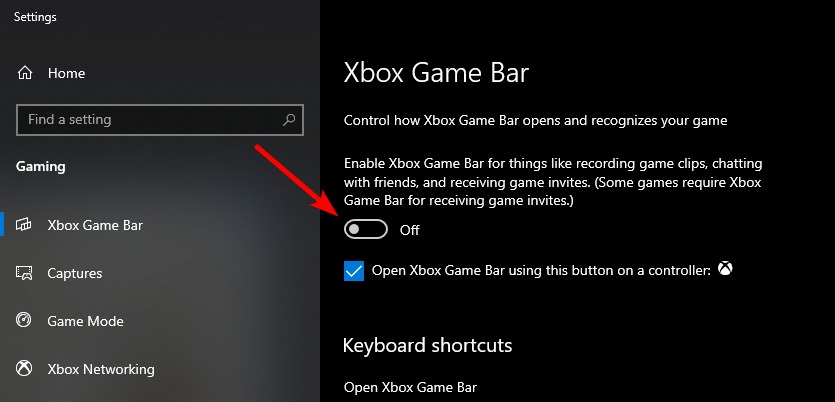
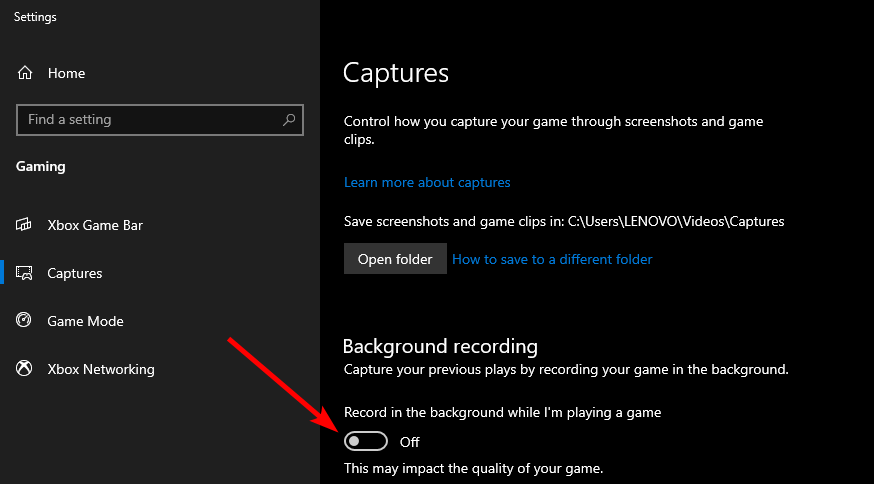
Windows Game Options
Disabling the following options through the
Windows system settings
can improve the recording:
-
Xbox Game Bar
-
Background recording
-
Game Mode

If you're using an AMD Ryzen processor, updating your BIOS may help fix the recording issue.
To do this, visit your motherboard manufacturer’s website and follow the instructions for your specific motherboard model.
AMD Ryzen Processor
If you're using an
AMD Ryzen processor
updating your BIOS may help fix the recording issue.
To do this, visit your motherboard manufacturer’s website and follow the instructions for your specific motherboard model.
Other Recording or Streaming Software running while recording with Overwolf apps
If you're using
other video capture or streaming tools
at the same time as the Overwolf recording app, it may cause problems with your recordings or stop Overwolf from capturing altogether. This includes:
-
NVIDIA ShadowPlay / NVIDIA Share
-
OBS Studio
-
Wondershare
-
Streaming apps like Discord
-
Live wallpaper apps
(
Lively Wallpaper
,
Wallpaper Engine
)
To avoid issues, please
close or disable
these programs before using your Overwolf recording app.
Also, make sure you're
not using multiple Overwolf apps
with recording features at the same time, as this can also cause problems.
Examples of Overwolf apps with recording features include:
-
Avatar
-
BUFF
-
Game Capture
-
Gazoom
-
Insights Capture
-
Medal
-
Nuked.TV
-
Outplayed
-
Valorant Tracker (TRN)
-
Replay HUD
-
Replays.lol
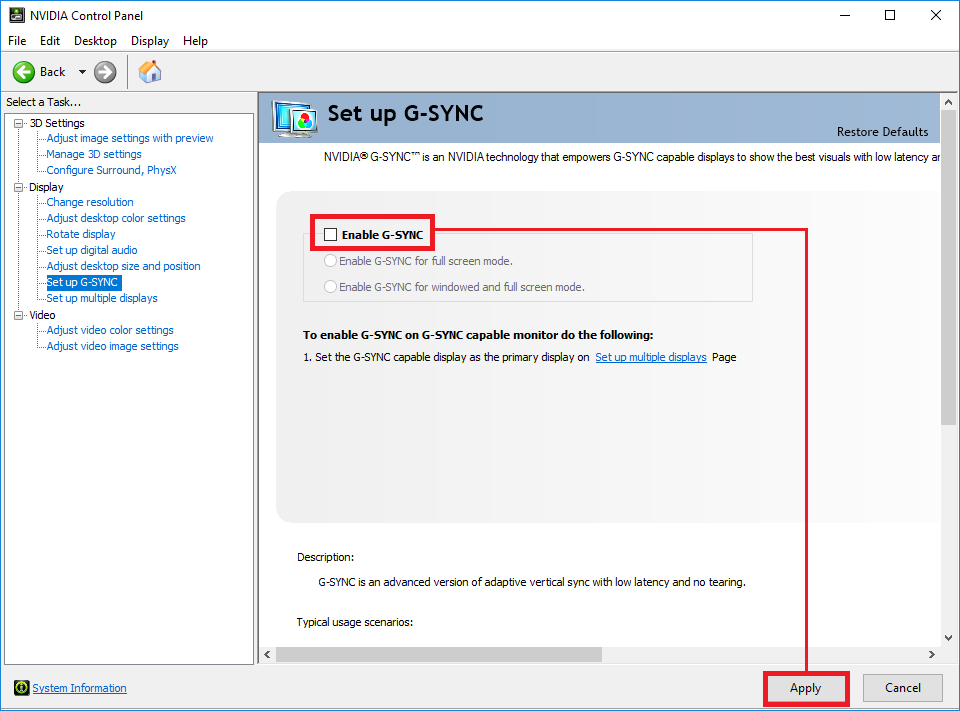
Nvidia G-SYNC
Running Nvidia G-SYNC may cause issues with recording. You can disable it using the following steps:
-
Right-click on your desktop and click on “Nvidia Control Panel” from the menu
-
Click on the “+” next to Display
-
Select Set up G-SYNC
-
Uncheck the box next to Enable G-SYNC & click on Apply
If your recordings
lag only when viewed inside an Overwolf app
, but play fine in a media player (like VLC), try these steps:
-
Turn Off Hardware Acceleration (Visual Artifacts)
Using the steps in:
Visual Artifacts in Overwolf Apps (Hardware Acceleration)
.
-
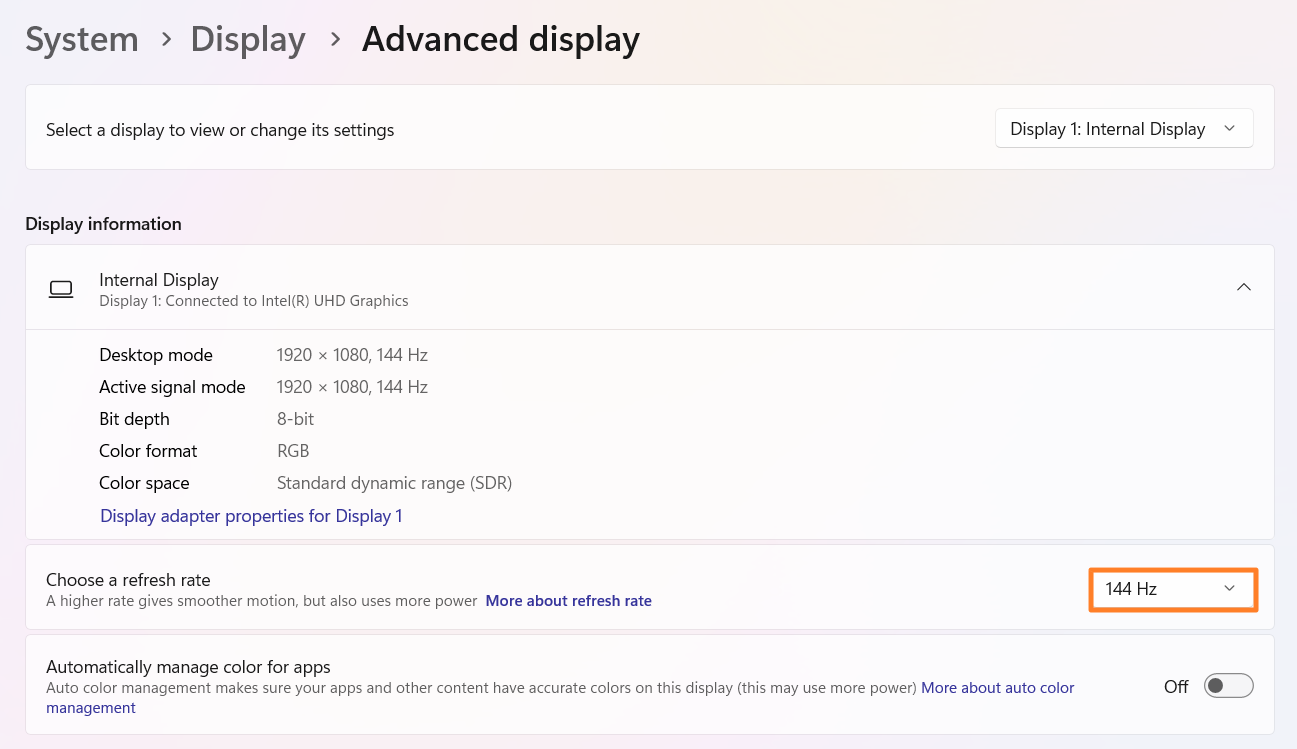
Check for Frame Rate Mismatch
Open Windows Settings → System → Display → Advanced Display Settings.
Look for your current refresh rate (e.g., 60Hz, 144Hz).
-
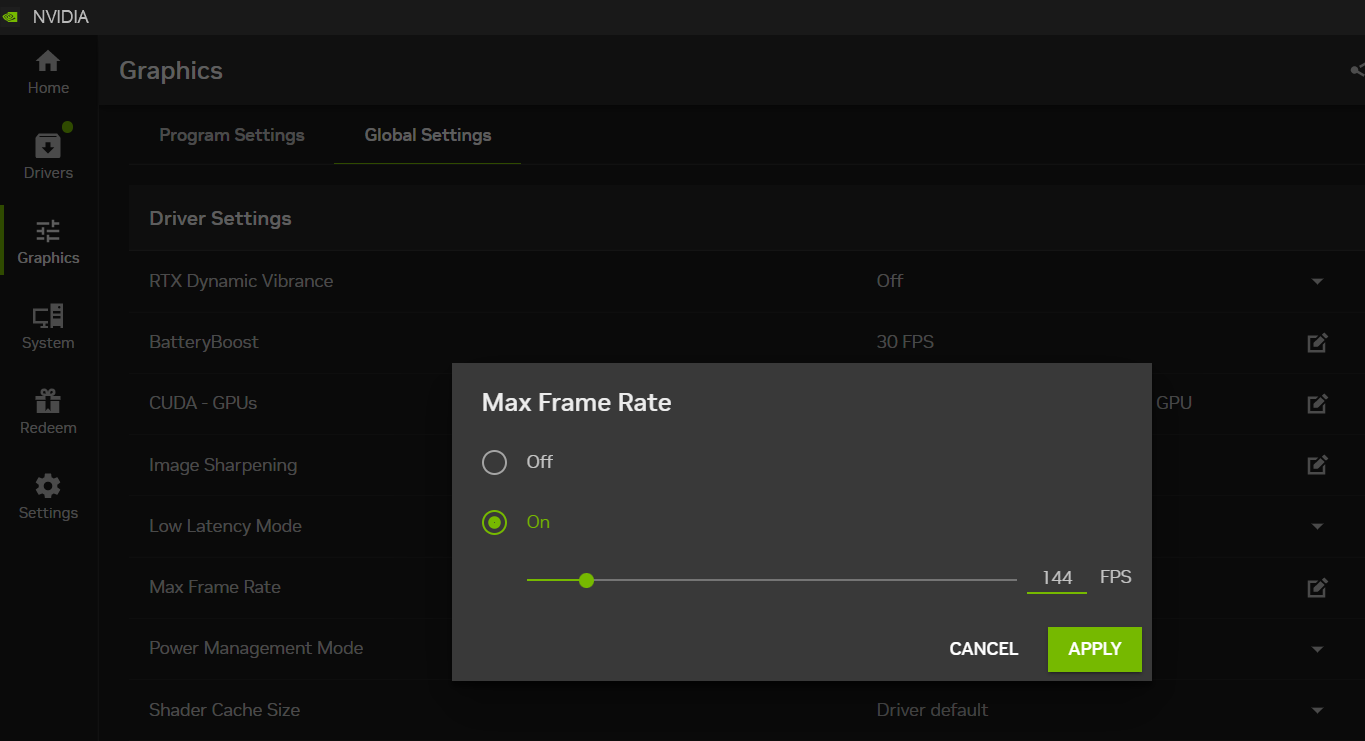
Check NVIDIA Max Frame Rate Settings:
Open the
NVIDIA Control Panel
and go to Manage 3D Settings:
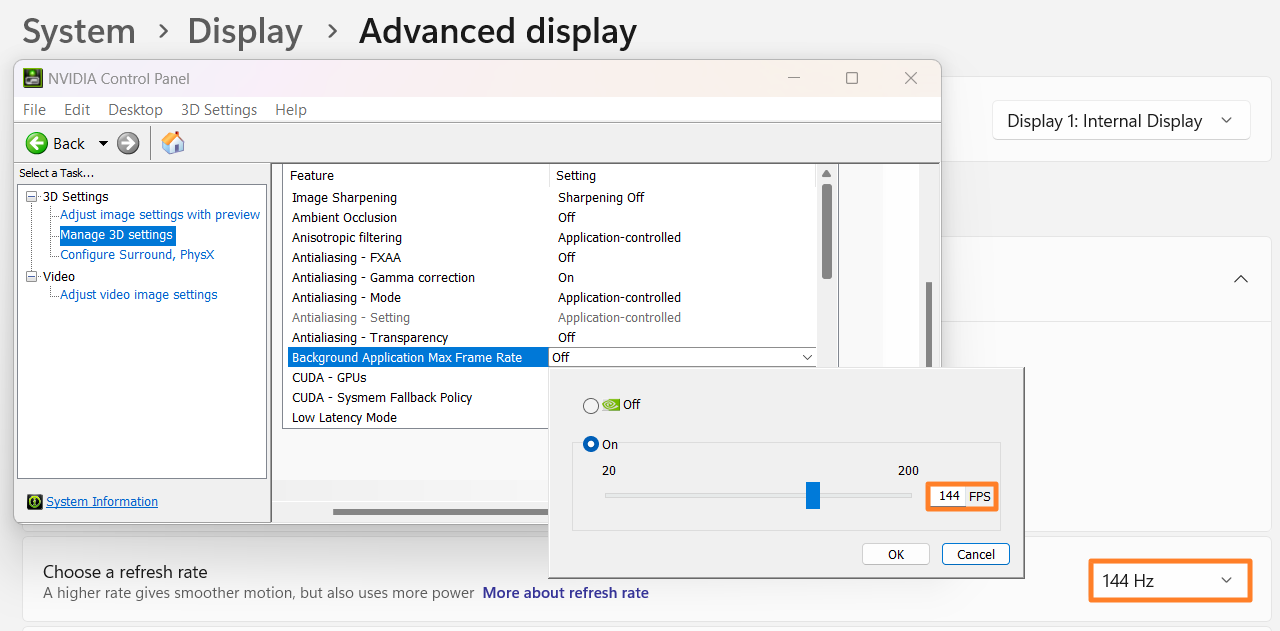
Make sure “
Background Application Max Frame Rate
” is disabled or set to match your Windows refresh rate.
You can also find this in the
NVIDIA App
under: Graphics → Global Settings → Max Frame Rate
If you change any of these settings, make sure to
restart your computer
before testing the recording again.
GPU Drivers
If your recorded videos show a
black screen
, are
completely blank
or have
no footage
at all, your
graphics card drivers might be outdated
.
The video encoder built into your GPU is essential for capturing gameplay. If your drivers are old or not working properly, the recording may fail resulting in empty or black video clips.
To fix this, update your GPU drivers by visiting your graphics card manufacturer’s website:
After updating,
restart your computer
to make sure the changes take effect. Then try recording again.
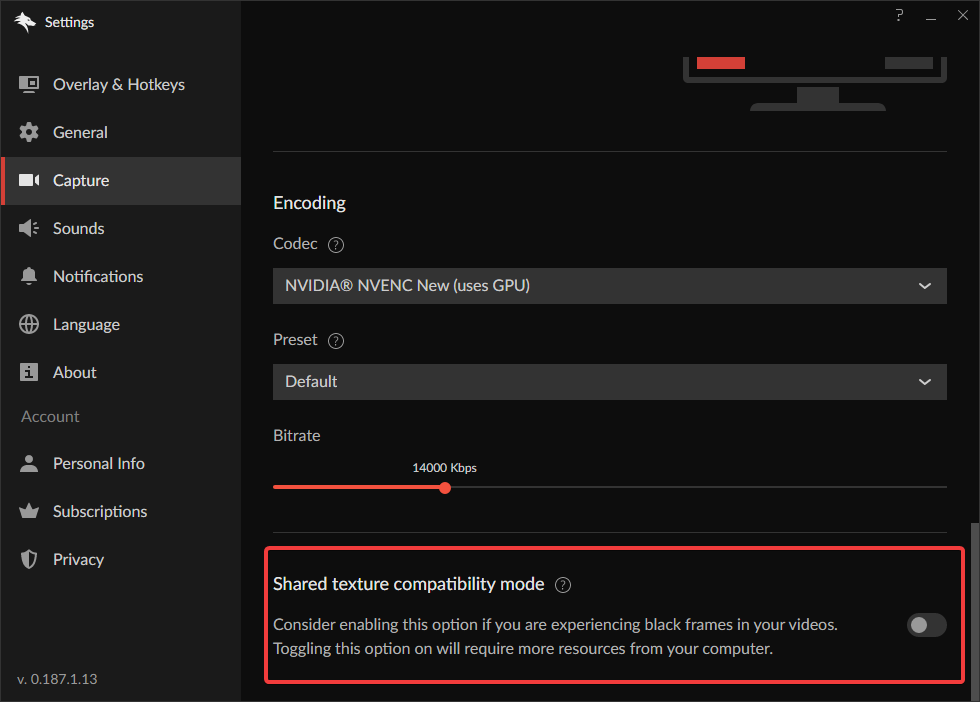
Shared Texture Compatibility Mode (SHT)
If your recordings are showing
only black frames
and your system has
both an integrated GPU and a dedicated GPU
, try enabling the
“Shared Texture Compatibility Mode”
in Overwolf’s
Capture Settings
.
This option helps improve compatibility in dual-GPU setups and may resolve the black screen issue.
Switchable Graphics Devices
Some systems use
switchable graphics
, meaning different apps can run on either the integrated GPU or the dedicated GPU.
If your game runs on one GPU and Overwolf’s capture engine runs on the other, it can cause
black screen recordings
or
no video capture at all
.
To fix this, you’ll need to set Overwolf’s capture engine to run on the same (dedicated) GPU as your game. Here’s how to do that:


