-
To restore the functionality of the Aria Suite Lifecycle, increase the free space on the '/storage' partition of Aria Suite Lifecycle appliance.
-
Increasing disk size of '/storage' partition:
-
This would be the preferred method if
'/storage'
is at 100% utilization, as the postgres service may be unhealthy to access db and clear table entries.
-
Note:
The disk cannot be increased when a snapshot exists on the virtual machine. It is recommended to have daily backups of the system using any supported 3rd party utility that can manage vSphere snapshots as a backup provider before proceeding with these changes.
-
Login using
root
credentials to the Aria Suite Lifecycle Appliance using SSH.
-
Check the disk space utilization consuming high space:
df -h
. Validate that '
/storage
' partition is at high utilization.
-
Run either of the below commands to identify the disk on which "/storage" is configured:
-
lsblk
NAME MAJ:MIN RM SIZE RO TYPE MOUNTPOINT
sda 8:0 0 10.6G 0 disk
├─sda1 8:1 0 4M 0 part
├─sda2 8:2 0 10M 0 part /boot/efi
├─sda3 8:3 0 512M 0 part /boot
└─sda4 8:4 0 10G 0 part
└─system-system_0 254:5 0 10G 0 lvm /
sdb 8:16 0 50.1G 0 disk
└─data-data_0 254:4 0 50G 0 lvm /data
sdc 8:32 0 10.1G 0 disk
└─storage-storage_0 254:3 0 10G 0 lvm /storage
sdd 8:48 0 8.1G 0 disk
└─swap-swap_0 254:2 0 8G 0 lvm [SWAP]
sde 8:64 0 10.1G 0 disk
└─vg_alt_root-lv_alt_root 254:1 0 10G 0 lvm /storage/alt_root
sdf 8:80 0 8.1G 0 disk
└─vg_lvm_snapshot-lv_lvm_snapshot 254:0 0 8G 0 lvm /storage/lvm_snapshot
sr0 11:0 1 1024M 0 rom
-
l
vdisplay
--- Physical volume ---
PV Name /dev/sdc
VG Name storage
PV Size 10.06 GiB / not usable 4.00 MiB
Allocatable yes
PE Size 4.00 MiB
Total PE 2575
Free PE 15
Allocated PE 2560
LV UUID [UUID]
-
               pvdisplay


               --- Logical volume ---


               LV Path                /dev/storage/storage_0


               LV Name                storage_0


                VG Name                storage


                LV UUID                [UUID]


               LV Write Access        read/write


               LV Creation host, time photon, 2024-05-10 09:13:55 +0000


               LV Status              available


               # open                 1


               LV Size                10.00 GiB


               Current LE             2560


               Segments               1


               Allocation             inherit


               Read ahead sectors     auto


               - currently set to     256


               Block device           254:3
The '
/storage
' partition is usually mounted on the
/dev/sdc.
Note:
Incase there are 2 disks with same storage size check by running
lsscsi -v
, this will show controller ID.
-
Log in to vCenter and locate the Aria Suite Lifecycle virtual machine.
-
Shutdown
Aria Suite Lifecycle using a graceful Guest Operating system shut down.
-
Right-click on the Aria Suite Lifecycle appliance and select
Edit
Settings.
-
Navigate to the
Hard Disk
section and increase the size (By 10Gb More) of the disk that corresponds to the full partition.
-
Add more disk space to this drive from vCenter.
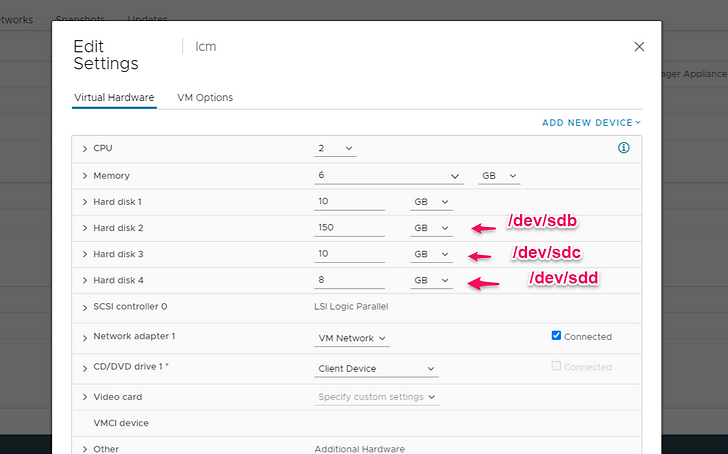
From the above examples, it can be identified that the
/storage
is
/dev/sdc
- Hence, to increase the '
/storage'
partition space, the
/dev/sdc
needs to be extended, in this case,
Hard disk 3
.
-
Save the changes and power on the Aria Suite Lifecycle appliance.
When rebooted, the autogrow script detects the change in the logical volume and increases the size automatically.
-
If the partitions are not updated after the reboot, manually run
/etc/bootstrap/everyboot.d/20-autogrow-disk.
-
Log in to the Aria Suite Lifecycle Appliance using root credentials and run the command to validate that the root partition has been increased:
df -h
-
Run the command to validate that all the services are running as expected:
-
root@vrlcm [ - ] #vrlcm-cli -- health-status
bootstrap ------------------------ SUCCESS
postgres ------------------------- Running
vrlcm-server -------------------- Running
blackstone ---------------------- Running
-
Validate that the Aria Suite Lifecycle UI should be accessible now.
-
Cleaning up tables in the Aria Suite Lifecycle DB:
-
This method would only be possible if the postgres service is running and the '/storage' partition is not at 100% utilization.
-
Ensure valid snapshot and backups are in place.
-
Log in to the Aria Suite Lifecycle Appliance using root credentials.
-
Connect to the Aria Suite Lifecycle DB:
su - postgres
cd /opt/vmware/vpostgres/11/bin
./psql -d vrlcm
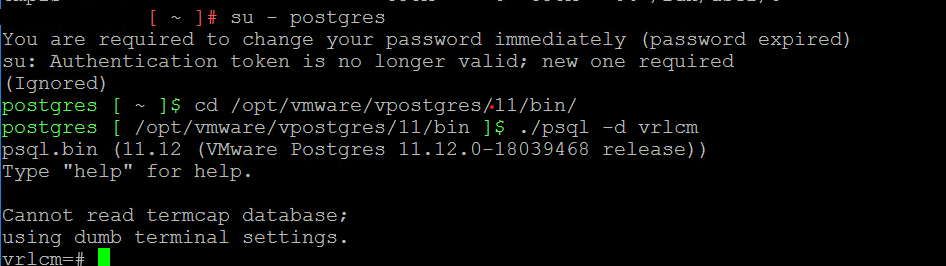
-
Run
VACUUM FULL VERBOSE ANALYZE vm_rs_request
;
to clean up DB.

-
run
\q
to quit the database
-
exit the psql bash.
-
Validate that the UI is accessible.
Note
: All screenshots are from lab environment